
Manually reconciling 400 granular Azure roles with a new system's four permissions is a non-starter.
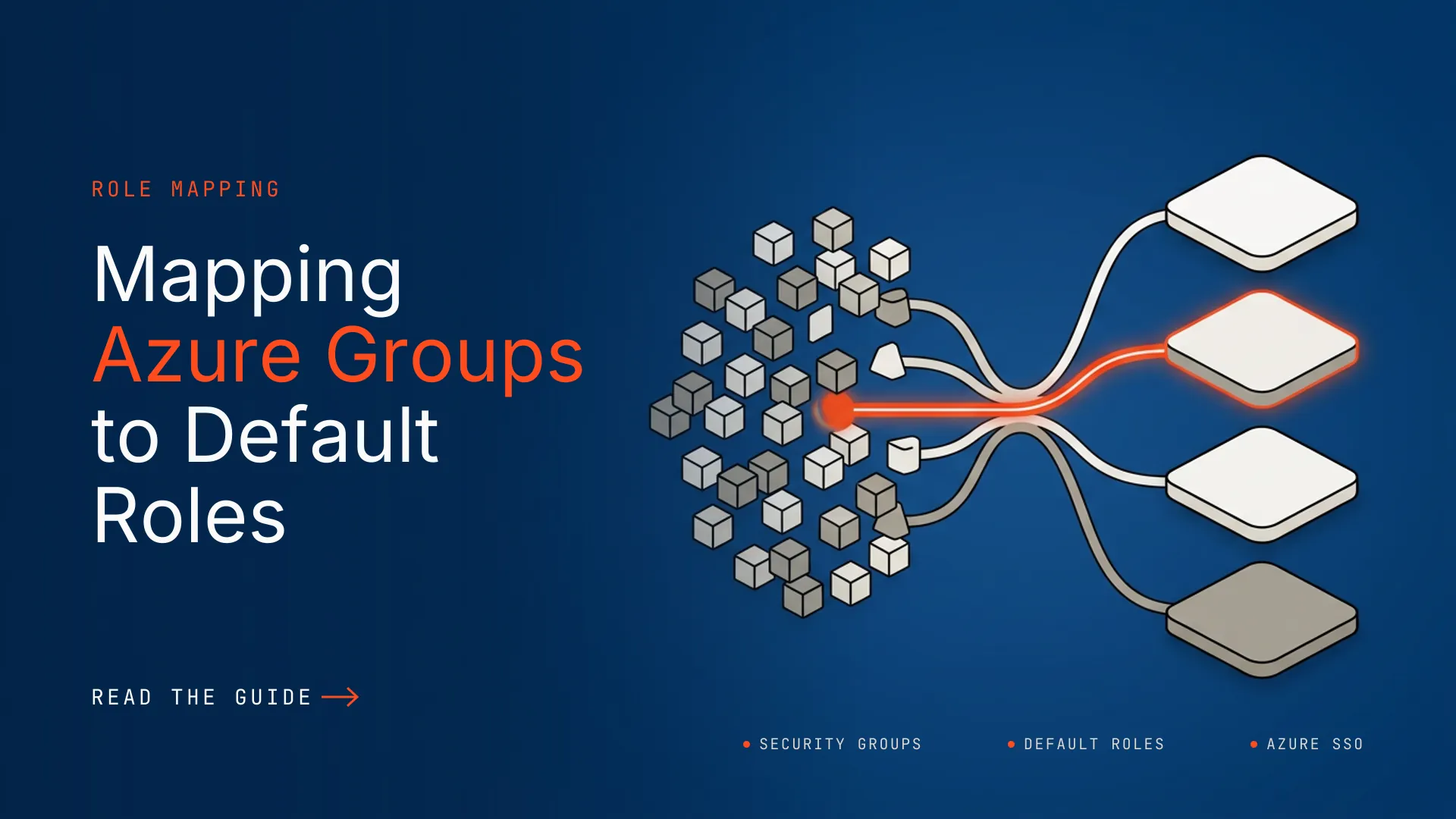
OpenController doesn't force this. It doesn't map your hundreds of Azure roles to its four roles at all.
Instead, you map your existing Azure AD security groups to the four roles within OpenController by Lyzr, the control plane for enterprise AI agents.
Lyzr’s control plane is built to inherit your existing identity structure, not force you to rebuild it.
TL;DR: It's a Group-to-Role Mapping
OpenController doesn’t import or try to understand your hundreds of individual Azure roles.
You assign your existing Azure AD security groups to one of OpenController's four default roles.
For example, you map your AI_Platform_Admins Azure AD group to the Admin role in OpenController.
All identity management for who is in that group stays in Azure AD. OpenController simply trusts Azure's source of truth.
How the Group Mapping Works
The process is designed to be minimal and leverage work you've already done in Azure AD.
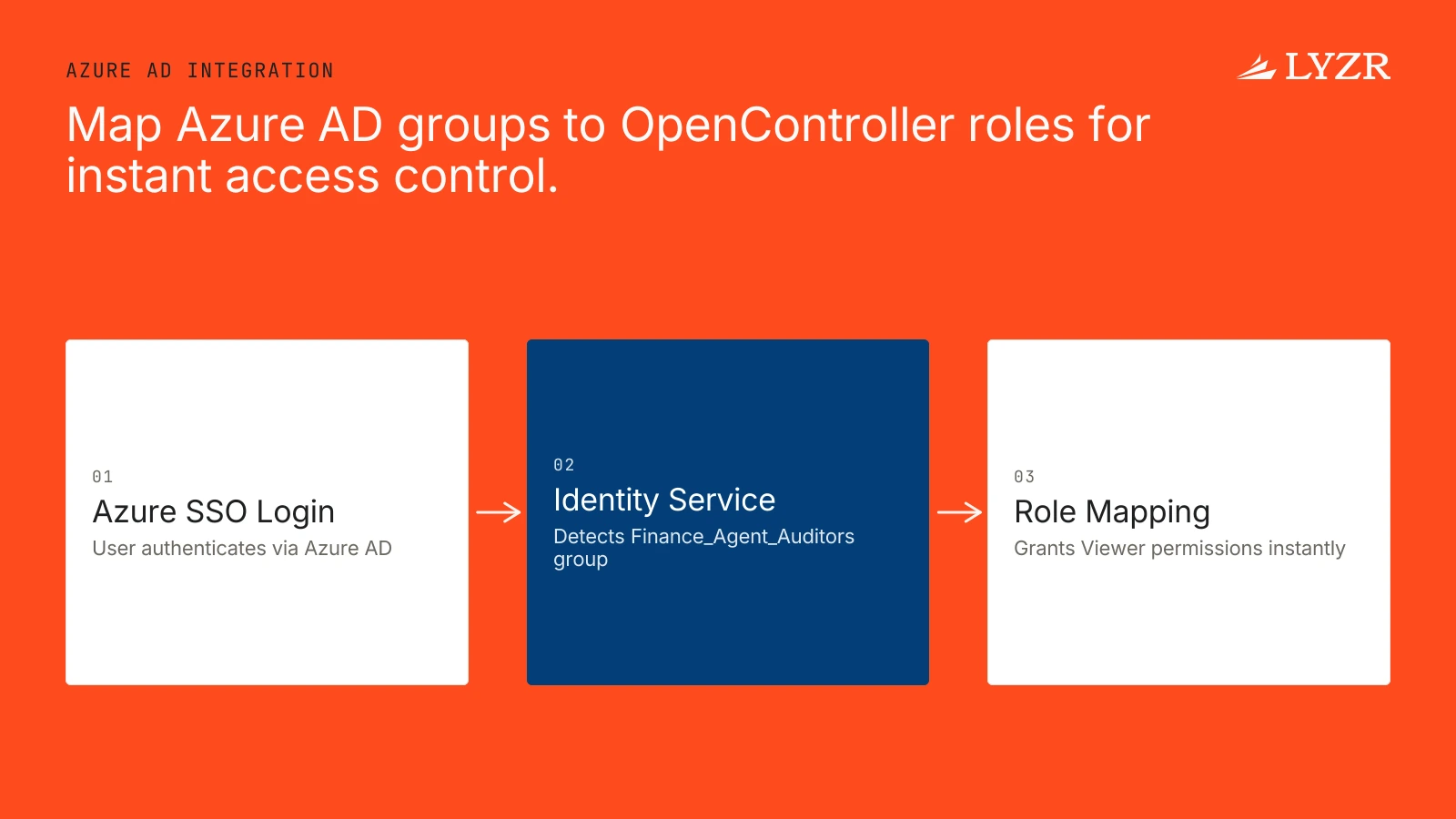
- You connect your Azure AD tenant as an identity provider within OpenController's settings.
- OpenController can now see your Azure AD security groups.
- You then create the mapping. You select an Azure AD group (e.g.,
Finance_Agent_Auditors) and assign it to an OpenController role (e.g.,Viewer). - That’s it.
When a user logs in via Azure SSO, OpenController checks their group memberships.
If they are a member of the Finance_Agent_Auditors group in Azure, they are granted Viewer permissions inside the control plane.
If you remove them from that group in Azure, their access is revoked on their next session. You never manage individual users inside OpenController.
The Four Default Roles Explained
The four built-in roles cover the core functions of governing an AI platform.
- Admin: Has full control over the OpenController instance. Manages settings, integrations, and user role mappings.
- Editor: Can create, edit, and deploy agents and policies. This is the role for your AI developers and platform engineers.
- Viewer: Has read-only access. Can see agent observability data, review audit logs, and monitor performance, but cannot make any changes. This is for auditors, compliance teams, and business stakeholders.
- User: Can only interact with published, production-ready agents available to them in the agent marketplace. Cannot build, edit, or see configuration details.
What If You Need More Granular Control?
The four roles govern access to the control plane itself.
They do not govern agent-specific permissions.
You don't need to create a new OpenController role for every specific use case. That granularity is handled by policies, which are managed by users with the Editor role.
For example, to restrict access to a financial agent, you don't create a "Finance Agent User" role.
Instead, an Editor would create a policy inside OpenController that states only users in the Finance_Department Azure AD group can interact with agents tagged as finance-bots. This allows you to enforce fine-grained rules on sensitive data access without creating hundreds of platform-level roles.
Frequently asked questions
Does this mean we have to change our Azure AD structure?
No. OpenController adapts to your existing Azure AD group structure. You simply tell OpenController which of your established groups corresponds to which of its four roles.
What happens if a user is in multiple mapped groups?
The user is granted the permissions of the highest-level role they are assigned. If a user is in a group mapped to Viewer and another group mapped to Editor, they will have Editor permissions.
The Takeaway
The mapping is designed for enterprise scale. You manage granular user permissions in Azure AD with security groups, as you always have, and use OpenController to apply broad governance roles to those existing groups.
If you have questions about how this fits your specific identity provider, let's talk.
Want to see how it fits your stack? Talk to us about OpenController by Lyzr.
Got a use case in mind?
8 weeks from use case to agents running in production.
Platform, people and FDEs, all in. Bring your environment. We'll co-build and stay until it's live.
Talk to UsFree resource
101 AI Agents Use Cases
100+ production-ready AI agent use cases across Marketing, Sales, HR, Banking, Insurance, Operations and a lot more
Download now