
What is Retrieval-Augmented Generation (RAG)?
RAG combines neural information retrieval with text generation to improve the responses of large language models (LLMs). It allows your AI to pull in data from an external knowledge base, giving it access to up-to-date and accurate information beyond what it learned during training.
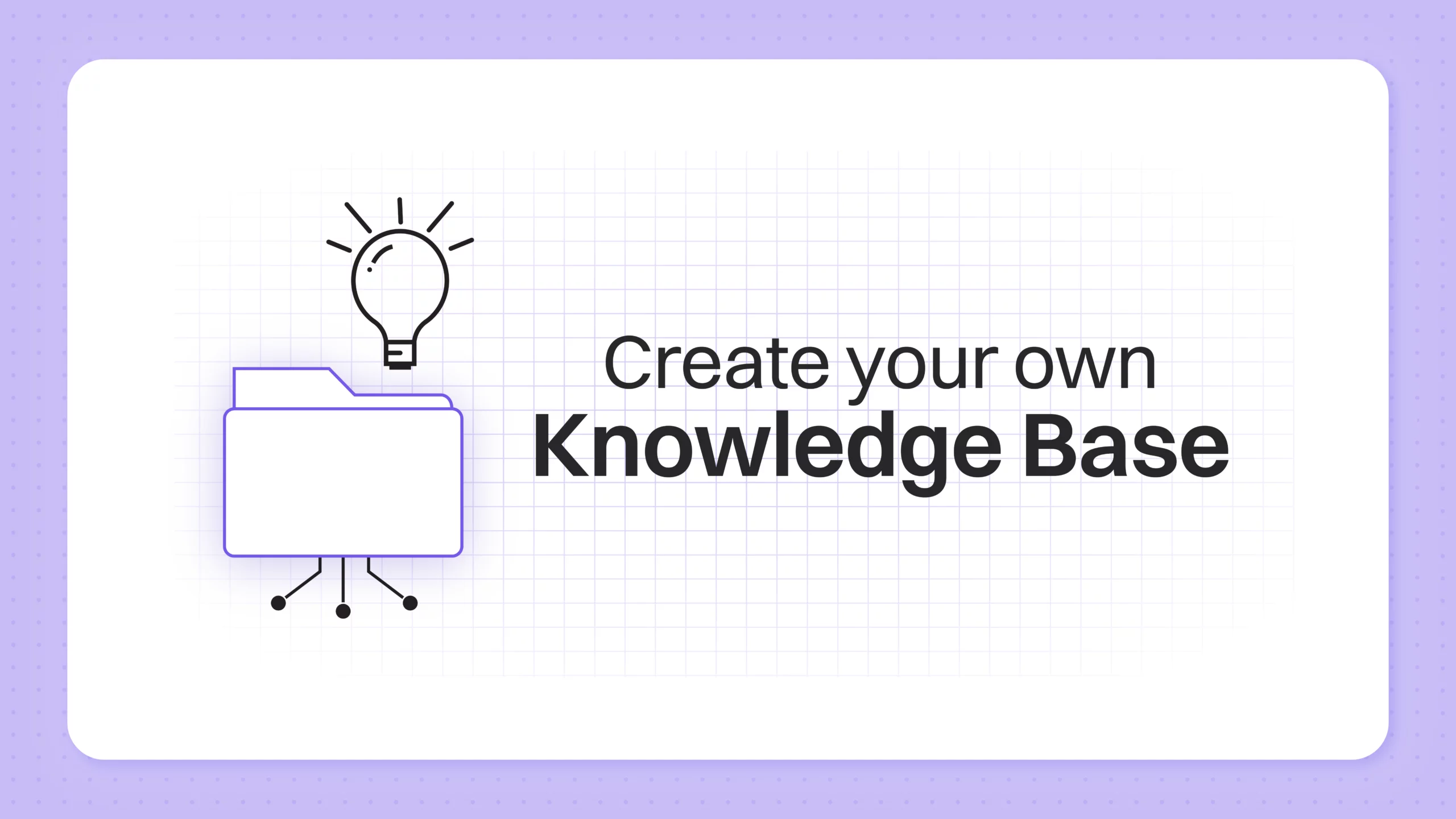
In this video, we cover how you can set up a knowledge base with Lyzr Studio to make your AI even smarter. We’ll walk through the basics of Retrieval-Augmented Generation (RAG) and show you how to build and configure a knowledge base to help your AI provide more accurate and relevant responses.
Setting Up Your Knowledge Base in Lyzr Studio
If you’re setting up a knowledge base for the first time, just click on “Create New” in Lyzr Studio to begin.
Step 1: Name and Describe Your Knowledge Base
Start by giving your knowledge base a name that makes it easy to recognize. Add a short description to explain the type of information it will contain.
Step 2: Choose a Vector Store
Next, you’ll choose a vector store for fast, efficient searches. We recommend Weviate, which works well for quickly finding the information your AI needs.
Step 3: Select an Embedding Model
Lyzr Studio offers different embedding models based on how complex your data is. Choose a smaller model for simpler data or a larger one for more detailed information.
Step 4: Upload Your Content
Now it’s time to upload content into your knowledge base. You can upload files, add a website URL, or input raw text. For example, you might upload a document about LLM agents for the AI to reference. For a product support agent, use tutorial creation software to document a task like inviting a teammate. Upload the written steps so the agent can walk users through the task. You can also use tools like The QR Code Generator (TQRCG) to create scannable links that quickly direct users to uploaded resources, documentation, or AI knowledge portals.
Step 5: Verify Your Upload
Once your content is uploaded, it’ll show up in your knowledge base, ready to be used.
Connecting Your Knowledge Base to an Agent
Head over to the Agent Builder and select the knowledge base you just created. Now, you can ask the agent specific questions like, “What are LLM agents?” The agent will pull the relevant information from your document and generate a response.

That’s all there is to it!
With Lyzr Studio, creating and setting up a knowledge base is straightforward, allowing your AI to provide more accurate, relevant answers every time.
Book A Demo: Click Here
Join our Slack: Click Here
Link to our GitHub: Click Here
Got a use case in mind?
8 weeks from use case to agents running in production.
Platform, people and FDEs, all in. Bring your environment. We'll co-build and stay until it's live.
Talk to UsFree resource
101 AI Agents Use Cases
100+ production-ready AI agent use cases across Marketing, Sales, HR, Banking, Insurance, Operations and a lot more
Download now